Commercial

From the customer's schedule to the money in the bank.

Customer schedules & EDI

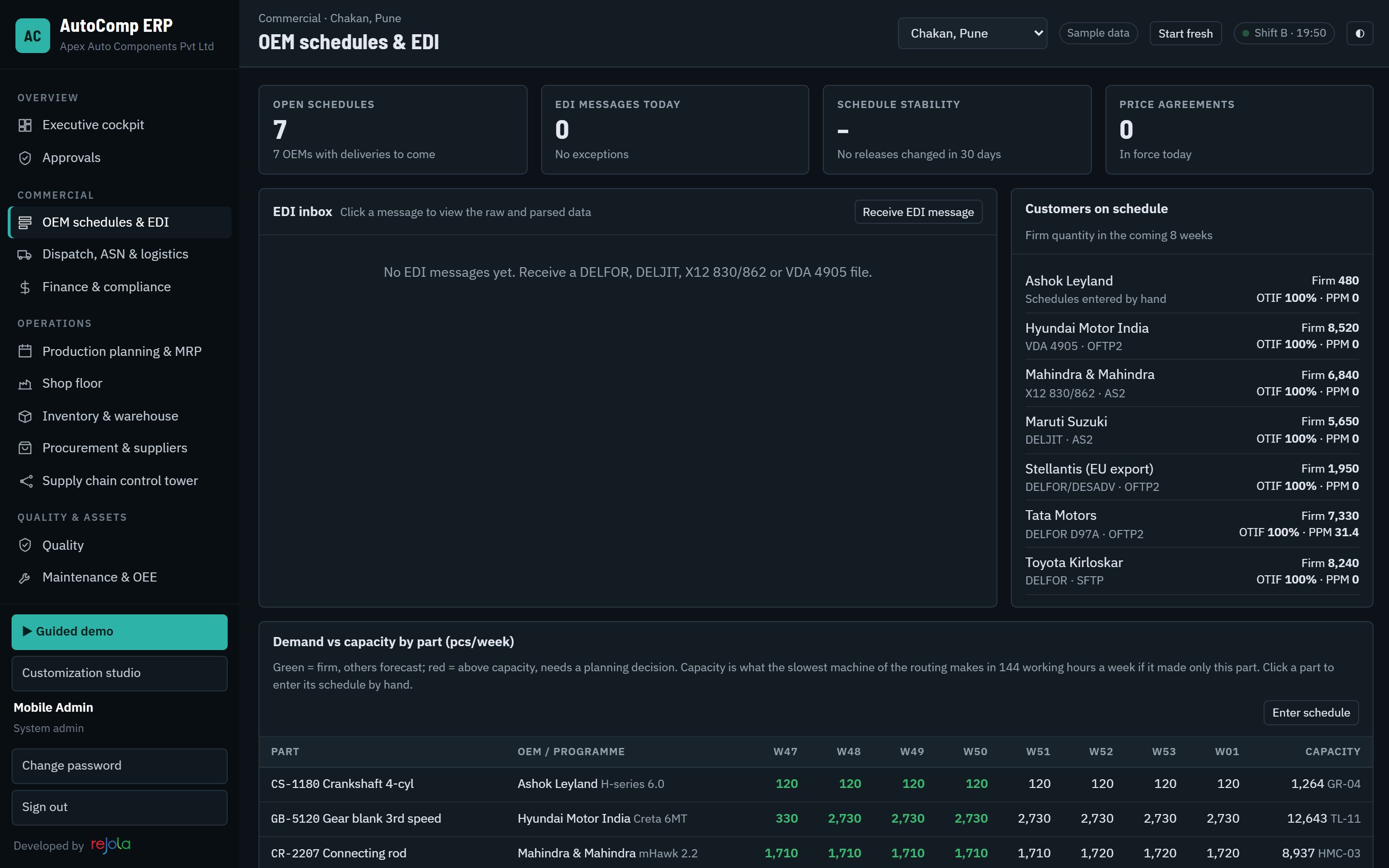
Every customer's delivery schedule in one place, read straight from their EDI messages or typed in by hand. Each week's demand is checked against what your machines can make, before it becomes a problem.

  • DELFOR
  • DELJIT
  • X12 830/862
  • VDA 4905
AutoComp ERP customer schedules screen: open schedules, the EDI inbox and customers on schedule
  • EDI inbox

    Load a DELFOR, DELJIT, X12 or VDA file and it becomes the customer's schedule. A customer part number you have not mapped waits as an exception until you map it.

  • Schedules by hand

    For customers who do not send EDI, enter the schedule yourself by part and week.

  • Demand against capacity

    Each part's weekly demand against what its slowest machine can make. Weeks over capacity show red and go to planning in one click.

  • Customer performance

    Firm quantity, on-time in-full delivery and PPM for every customer over the last 12 months.

  • Price agreements

    Part prices per customer and period, with a raw-material clause linked to a steel price index.
Dispatch & shipping

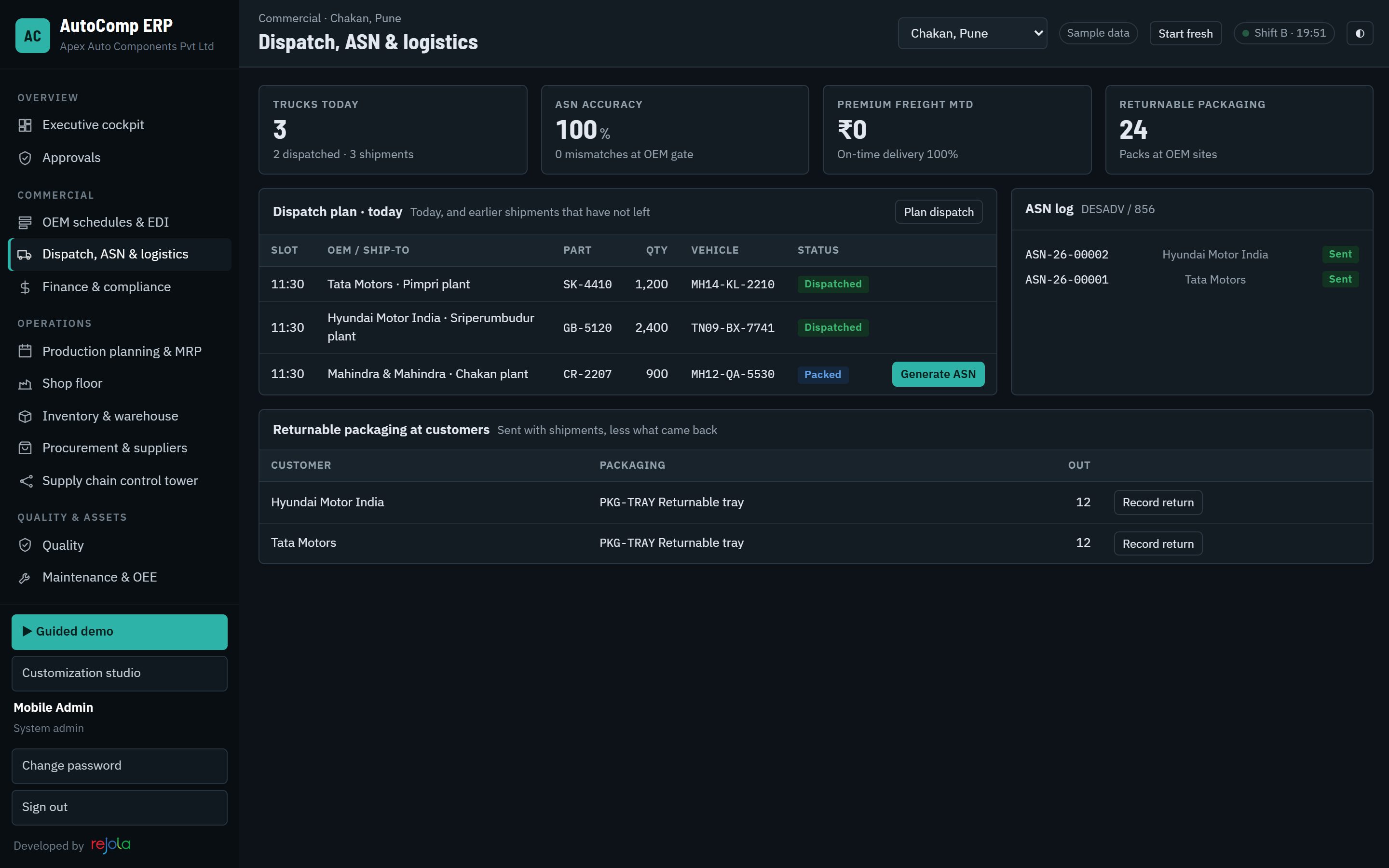
From finished stock to the truck at the gate. Only stock that passed inspection can ship, the shipping notice goes out with the truck, and the customer sees the shipment on their portal.

  • ASN
  • Labels
  • Certificate of conformity
AutoComp ERP dispatch screen: shipments, shipping notices and returnable packaging
  • Dispatch plan

    Pick the customer, the ship-to point and the parts. Only inspected stock is offered.

  • Packing and shipping notice

    Pack the shipment, send the advance shipping notice, and print the labels from it.

  • Dispatch the truck

    The stock leaves, the shipment is ready to invoice, and it appears on the customer's portal.

  • Certificate of conformity

    A PDF with part, revision, quantity, shipping notice, the heats used with their mill certificates, and the PPAP warrant.

  • Returnable packaging

    Bins and pallets still out at each customer, so none go missing.

Finance & tax

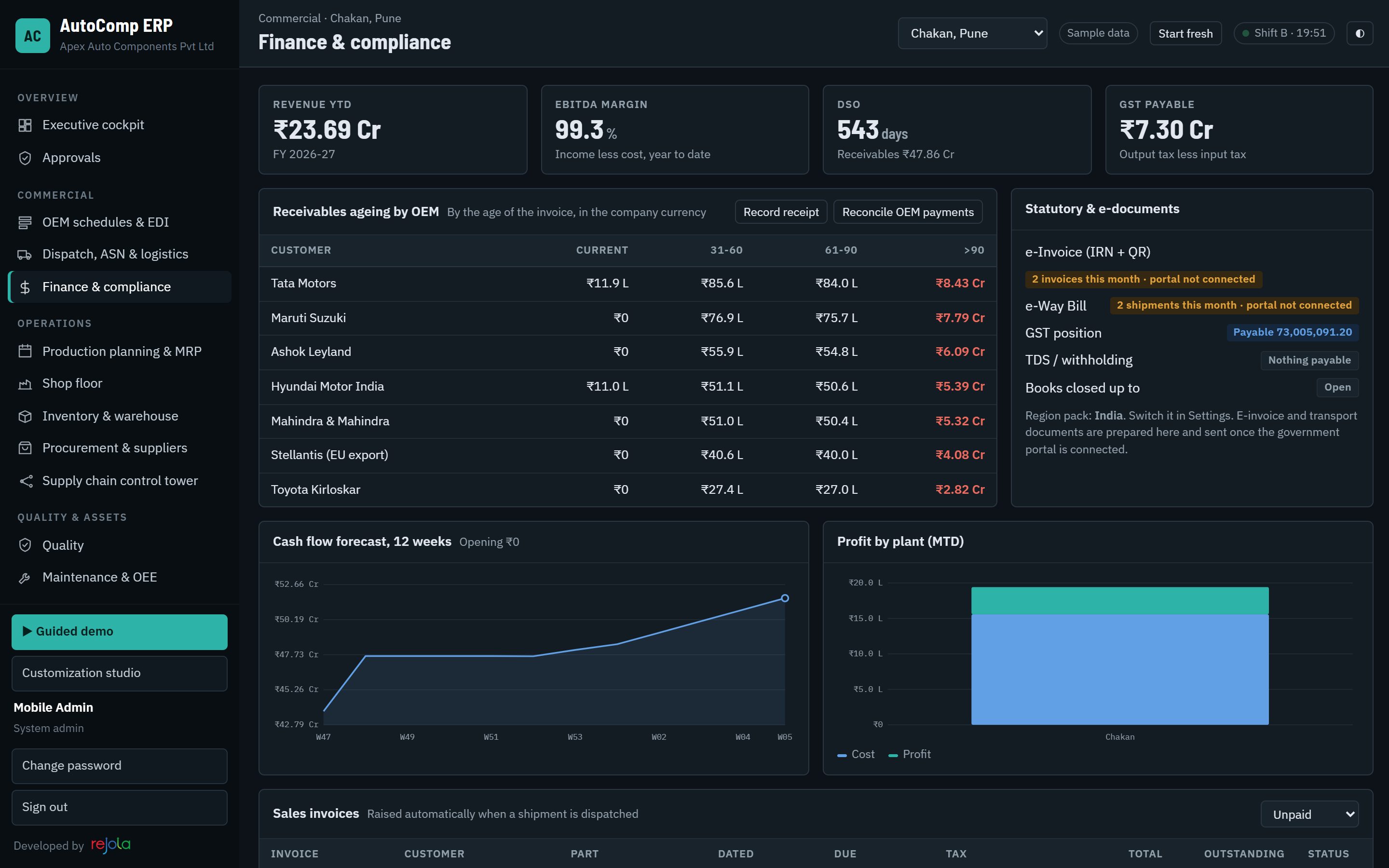
Invoices come straight from shipments and post to the ledger by themselves. Receipts, supplier payments and tax work on the same data, so month-end is a check, not a hunt.

  • GST
  • TDS
  • E-invoice
  • E-way bill
AutoComp ERP finance screen: shipments to invoice, receivables ageing and the trial balance
  • Invoices from shipments

    Raise the sales invoice from a dispatched shipment. It posts to the ledger automatically.

  • Customer receipts

    Receivables ageing by customer, receipts, and remittances matched to invoices. A short payment becomes a payment dispute.

  • Supplier payments

    Only invoices that match their order and goods receipt can be paid.

  • Ledger and reports

    Balanced manual journals, the trial balance, profit by plant this month, and a 12-week cash flow forecast.

  • Tax and statutory

    E-invoices and e-way bills raised this month, your GST position, tax withheld from salaries with its due date, and the date the books are closed to.

Operations

Plan it, make it, store it, buy it, and see it on the road.

Production planning & MRP

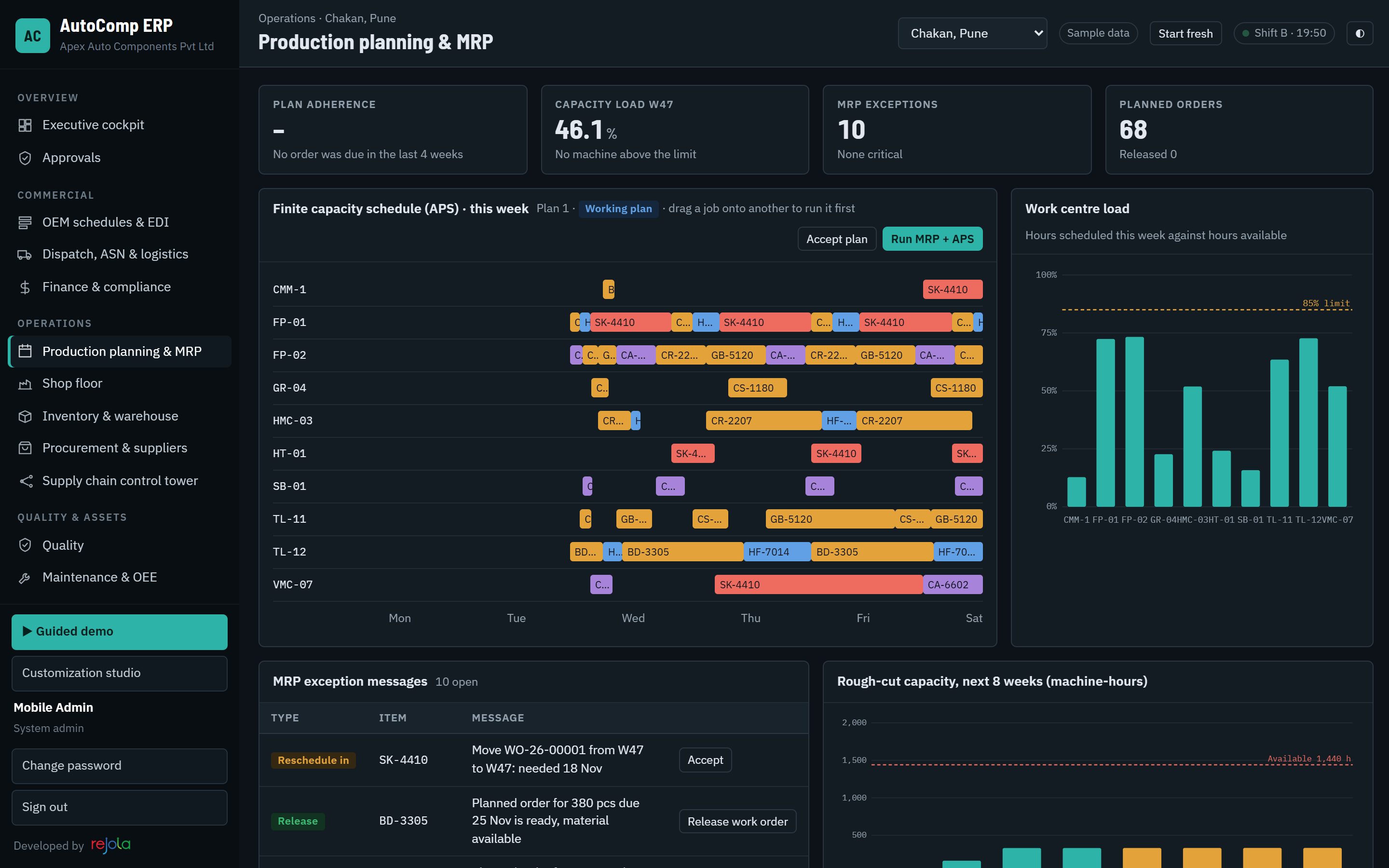
One run turns customer schedules, stock and bills of material into a plan for every machine. You see what needs changing, move jobs where you need to, and publish the plan to the floor.

  • MRP
  • Finite scheduling (APS)
  • Rough-cut capacity
AutoComp ERP planning screen: machine schedule and work centre load
  • Run MRP

    Planned orders, a finite-capacity schedule for the week, and exception messages, all from one run.

  • Exception messages

    Act on each one. Releasing a buy order sends a purchase requisition straight to purchasing.

  • Machine schedule

    Drag jobs on a machine into a different order when the floor needs it.

  • Load and capacity

    Work centre load and rough-cut capacity for the next 8 weeks show overloads early.

  • Accept and publish

    Once you accept the plan, planned orders become work orders on the shop floor.

Shop floor

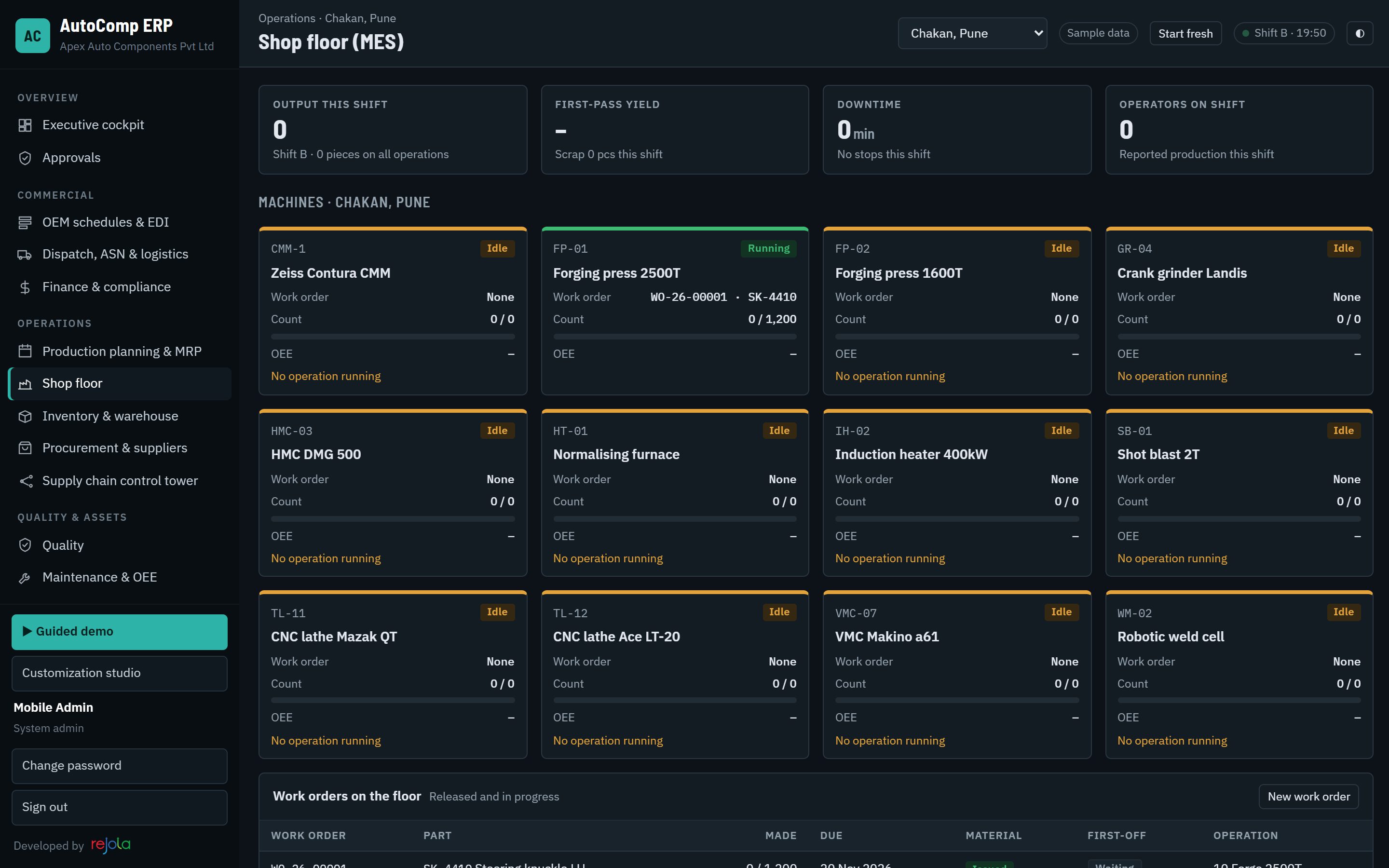
What happens at the machine, recorded at the machine. Operators issue material, start operations, count good parts and scrap, and log stops on a phone or tablet.

  • MES
  • FIFO by heat
  • Work instructions
AutoComp ERP shop floor screen: machines with status, work order and count
  • Material by heat

    Issuing material proposes the oldest heat first, so steel is used in the order it arrived.

  • Work instructions

    Steps, safety notes and up to 8 photos for each operation, shown when it starts.

  • Operator certification

    A critical machine starts only for an operator certified at level 2 or above, and not expired.

  • First-off, counts and scrap

    Approve the first piece, then record good parts and scrap with its defect code.

  • Downtime

    Log a stop with its reason, and end it when the machine runs again.

  • Feeds everything else

    Completed operations update OEE, costing and traceability as they happen.

Inventory & warehouse

Every receipt is a lot, raw material keeps its heat number, and the oldest heat always goes out first. Stock value, movements and counts all come from one stock ledger.

  • Lots & heats
  • FIFO
  • ABC
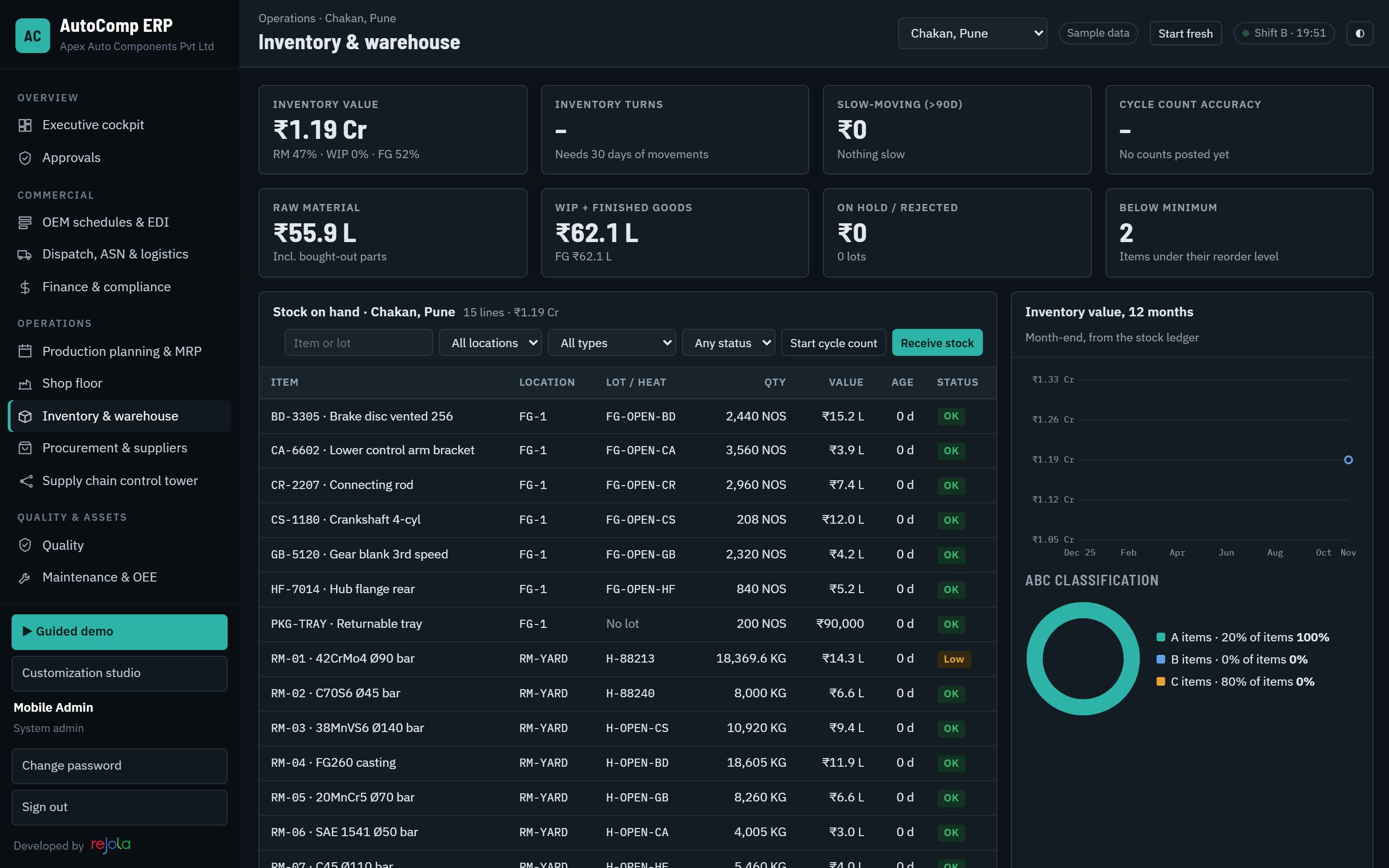
AutoComp ERP inventory screen: stock on hand by lot and heat with its value
  • Warehouses and locations

    Set up each store and its locations, then receive stock into them.

  • Lots and heats

    Each receipt is a lot at a weighted average value, with the heat number for raw material.

  • First in, first out

    A newer heat is refused while an older one of the same item is still in stock.

  • Transfers, adjustments and holds

    Move stock, adjust it with a reason, or put a lot on hold so it cannot be issued.

  • Reorder levels

    Items below their minimum are flagged before they run out.

  • Blind cycle counts

    Counters enter quantities without seeing the book figure. Differences post after approval.

Purchasing & suppliers

From the planner's requisition to the paid invoice. Orders are approved and then frozen, goods wait for inspection, and every invoice is checked against its order and receipt.

  • Purchase orders
  • Incoming inspection
  • Three-way match
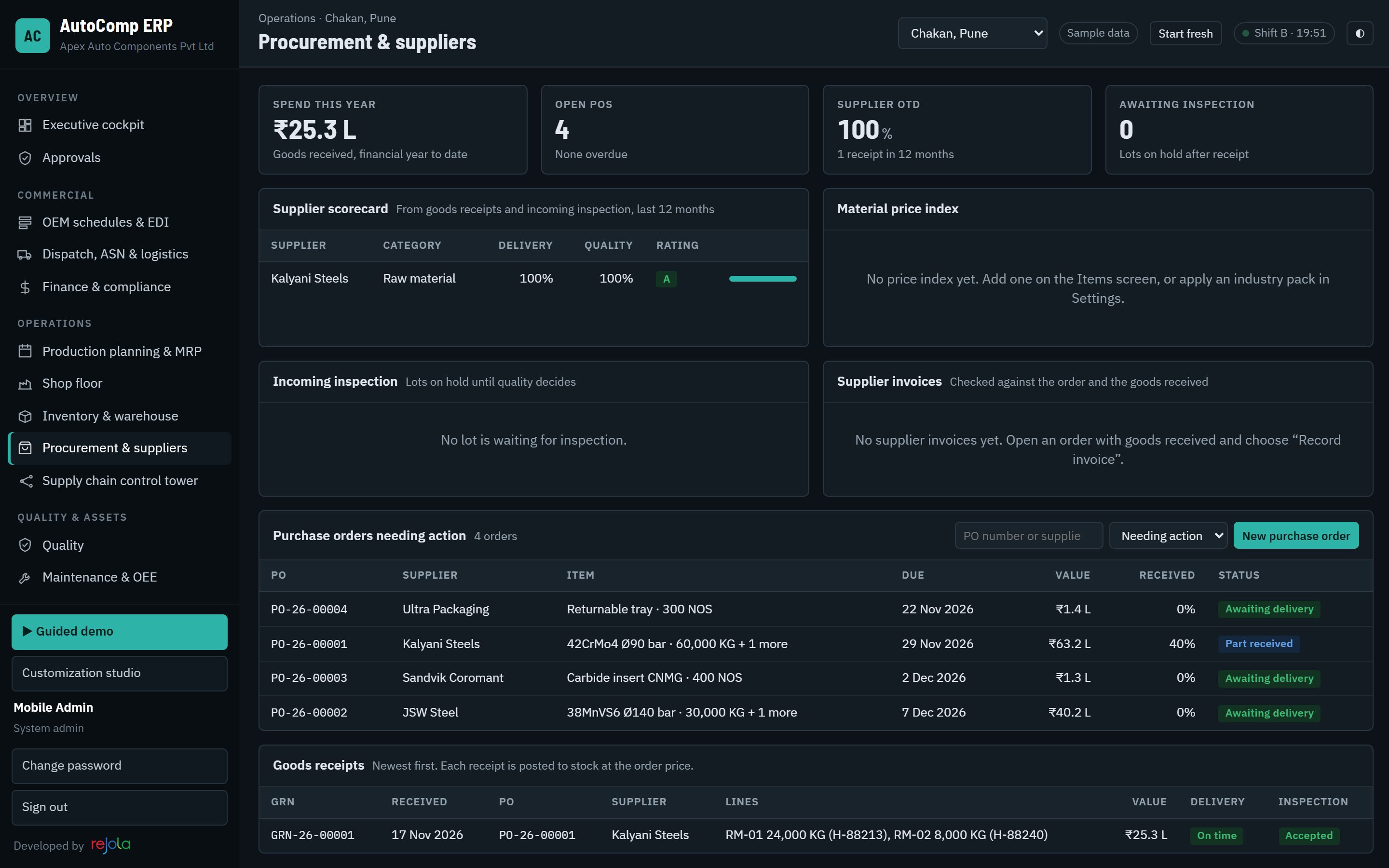
AutoComp ERP purchasing screen: purchase orders, receipts waiting for inspection and supplier scorecard
  • Requisitions from planning

    Turn a planner's requisition into a purchase order with the item and quantity filled in.

  • Purchase orders

    Supplier, date, lines, prices and an over-receipt allowance. Approved orders are frozen.

  • Goods receipt and inspection

    Record the heat and delivery note. Accepting releases the lot to stock; rejecting needs a finding.

  • Invoice matching

    Supplier invoices are checked against order and receipt. A mismatch waits on hold until resolved.

  • Supplier scorecard

    Every supplier rated A, B or C on delivery and quality.

  • Material price index

    Monthly steel and other index values that your price agreements follow.

Supply chain control tower

Your whole supply network on one screen: who supplies which plant, what is on the road right now, and which risks need watching.

  • Network map
  • In transit
  • Risk register
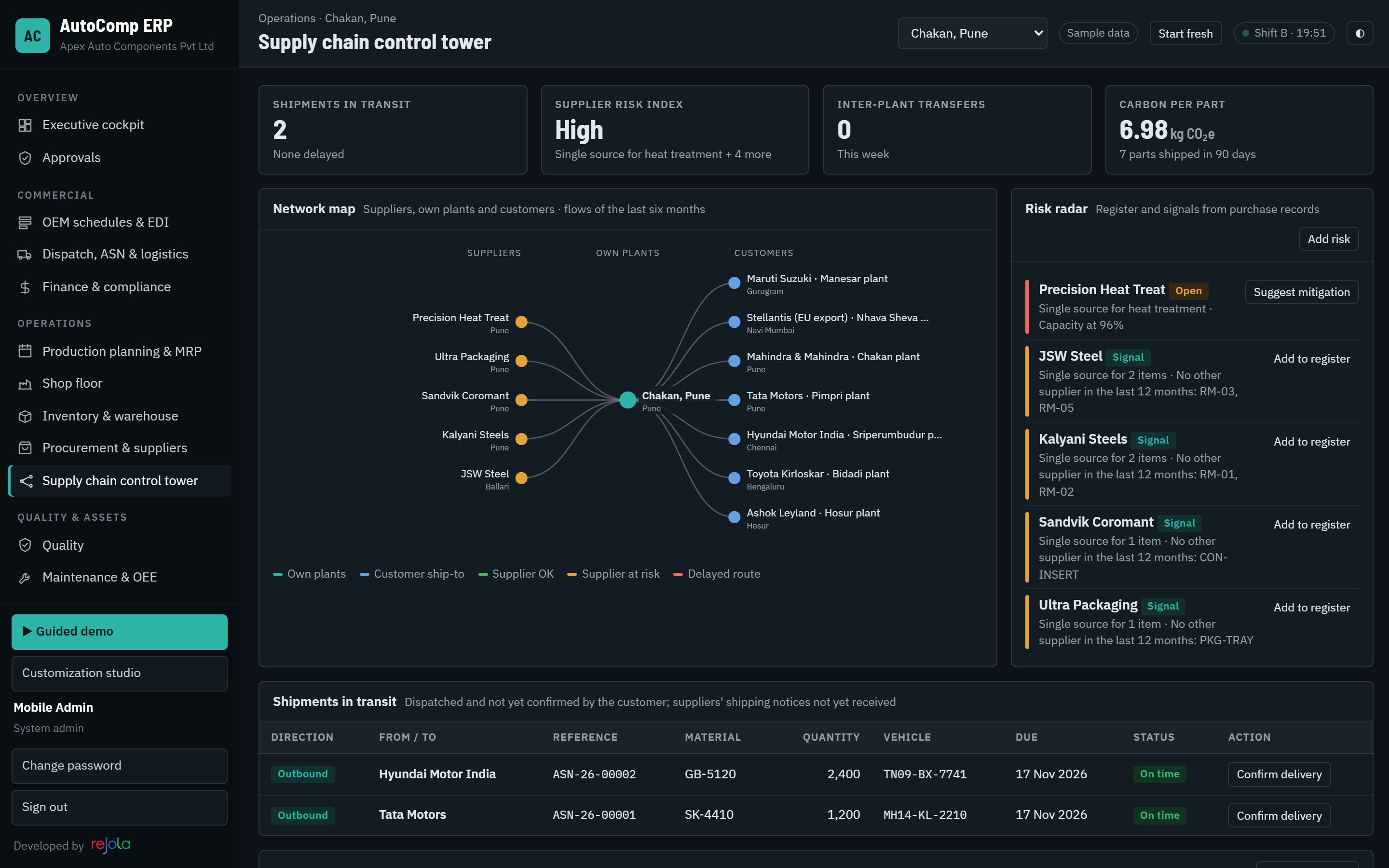
AutoComp ERP supply chain screen: network map, shipments in transit and supply risks
  • Network map

    Suppliers, plants and customers, with the shipments moving between them.

  • Shipments in transit

    Supplier deliveries announced on the portal and your own trucks. Confirming a delivery takes it off the road.

  • Supply risks

    Register a risk, record how it is being handled, and watch the risk index.

  • Transport emissions

    The plant's emission factors, for the carbon of each shipment.

Quality & assets

Good parts, healthy machines and dies that last.

Quality

The records an IATF 16949 audit asks for, made while the work is done. Measurements become control charts, rejections become a Pareto, and customer problems are worked through in an 8D.

  • SPC
  • APQP
  • PPAP
  • 8D
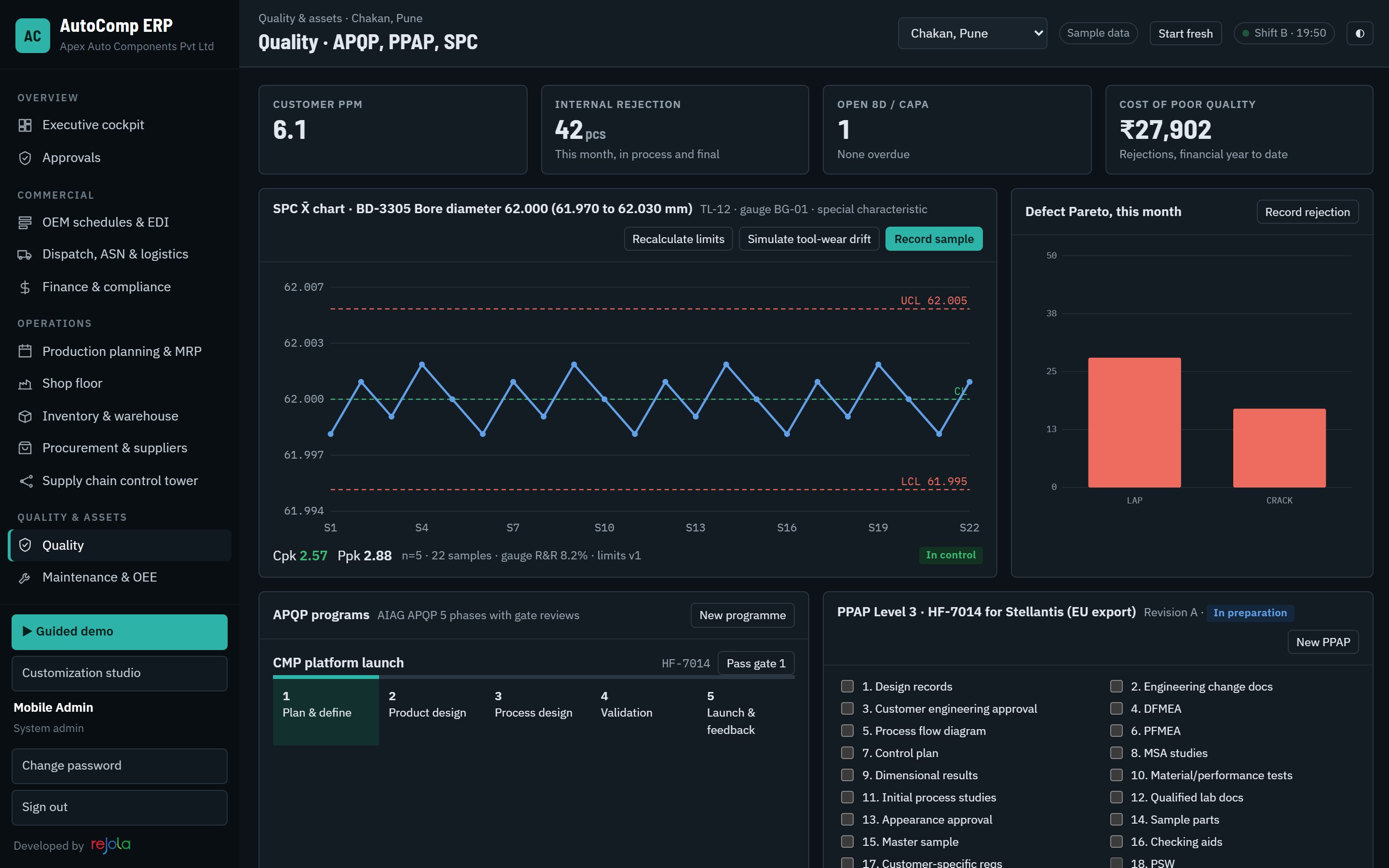
AutoComp ERP quality screen: SPC chart in control, defect Pareto and PPAP checklist
  • Control charts

    Record measurements of controlled characteristics. Control limits appear once there are enough samples, and points beyond them are flagged.

  • Rejections

    Record each rejection with its defect code. This month's defect Pareto builds itself.

  • Gauges

    Every gauge with its calibration due date.

  • APQP programmes

    New parts worked through the quality planning gates.

  • PPAP submissions

    The warrant stays blocked until every element is complete, then goes for approval.

  • 8D problem solving

    Work a problem through all eight disciplines, with closure approved by the people you choose.

Maintenance & OEE

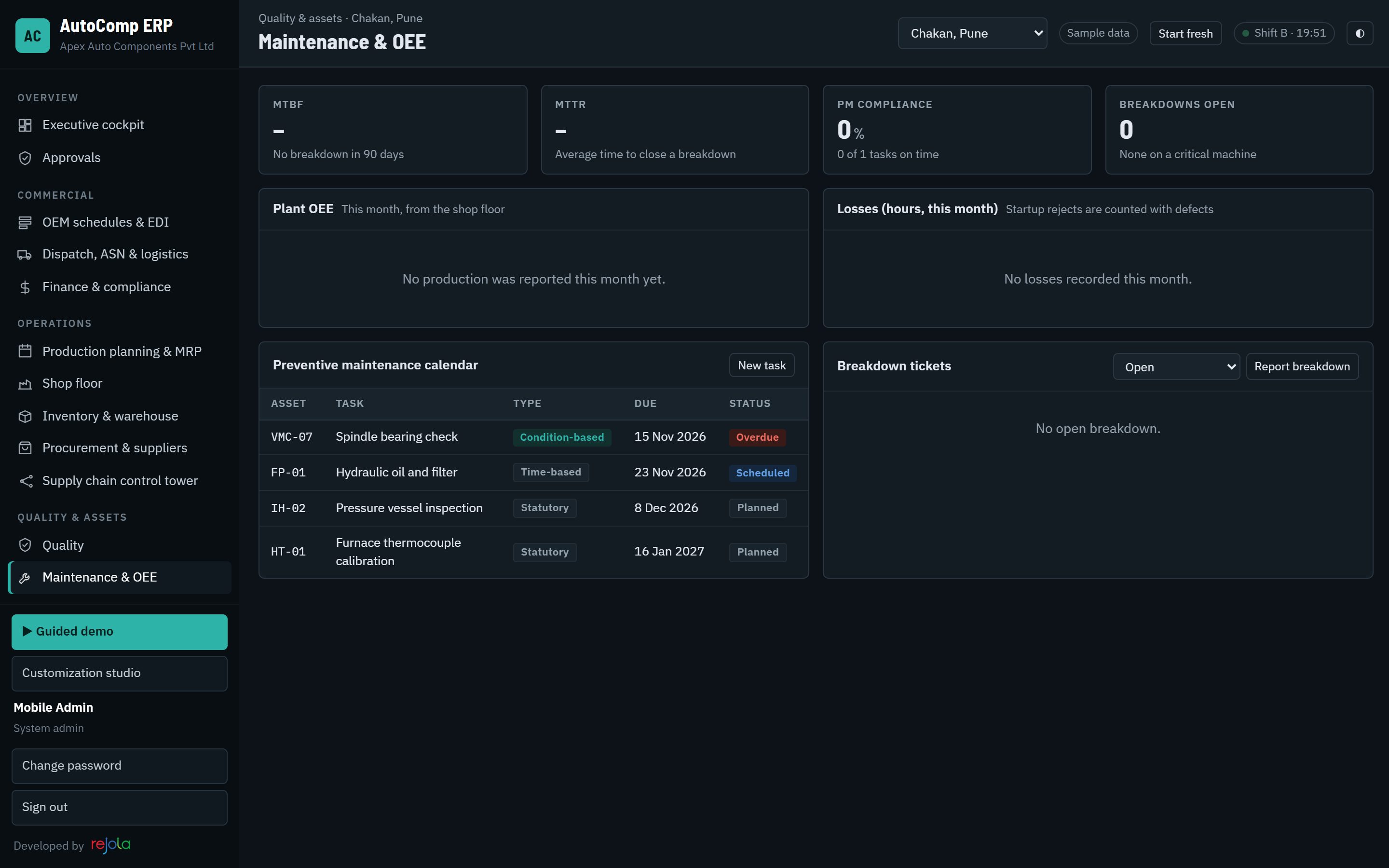
Machine efficiency from what the floor actually recorded, a calendar for planned maintenance, and breakdowns that keep the machine marked down until it is fixed.

  • OEE
  • Preventive maintenance
  • Breakdowns
AutoComp ERP maintenance screen: plant OEE, losses and the preventive maintenance calendar
  • Plant OEE and losses

    Availability, performance and quality losses by machine, from shop floor records.

  • Maintenance calendar

    Plan preventive tasks, mark them done, or move them to another date.

  • Breakdown tickets

    Report a breakdown and the machine shows as down until the ticket is closed.

Tooling & dies

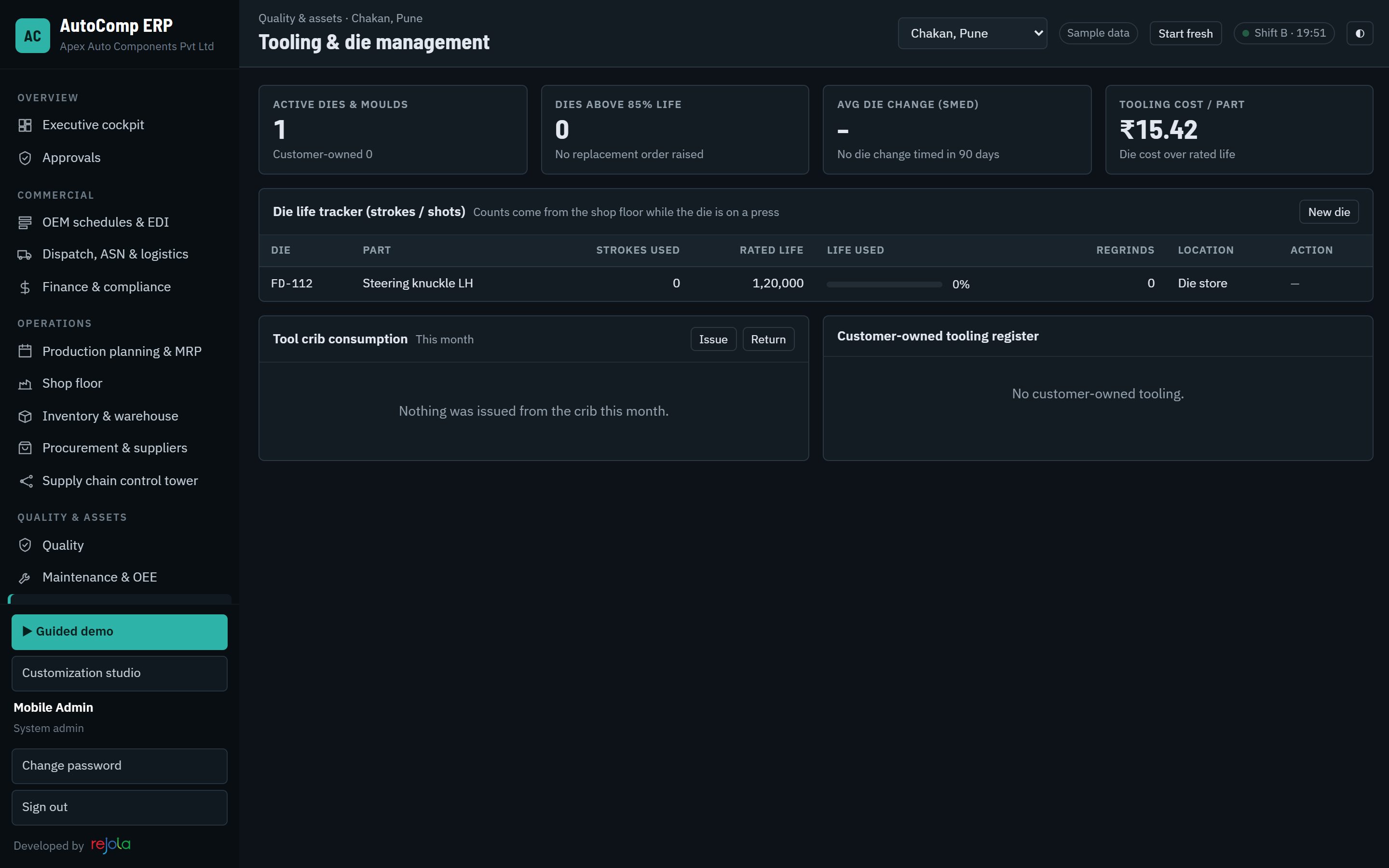
Every die's life counted in strokes or shots, every changeover timed, and the tools your customers own accounted for.

  • Die life
  • Changeovers
  • Customer-owned tooling
AutoComp ERP tooling screen: die life tracker and customer-owned tooling register
  • Die life tracker

    Strokes or shots against each die's life. Worn dies are flagged.

  • Die changes

    Put a die on the press and time the changeover.

  • Plan a replacement

    Raises a draft purchase order for the new die.

  • Customer-owned tooling

    A register of tools your customers own, with audits.

  • Tool crib

    Issue inserts to the floor and take them back.

People & cost

What every part really costs, and the people who make it.

Costing & quotations

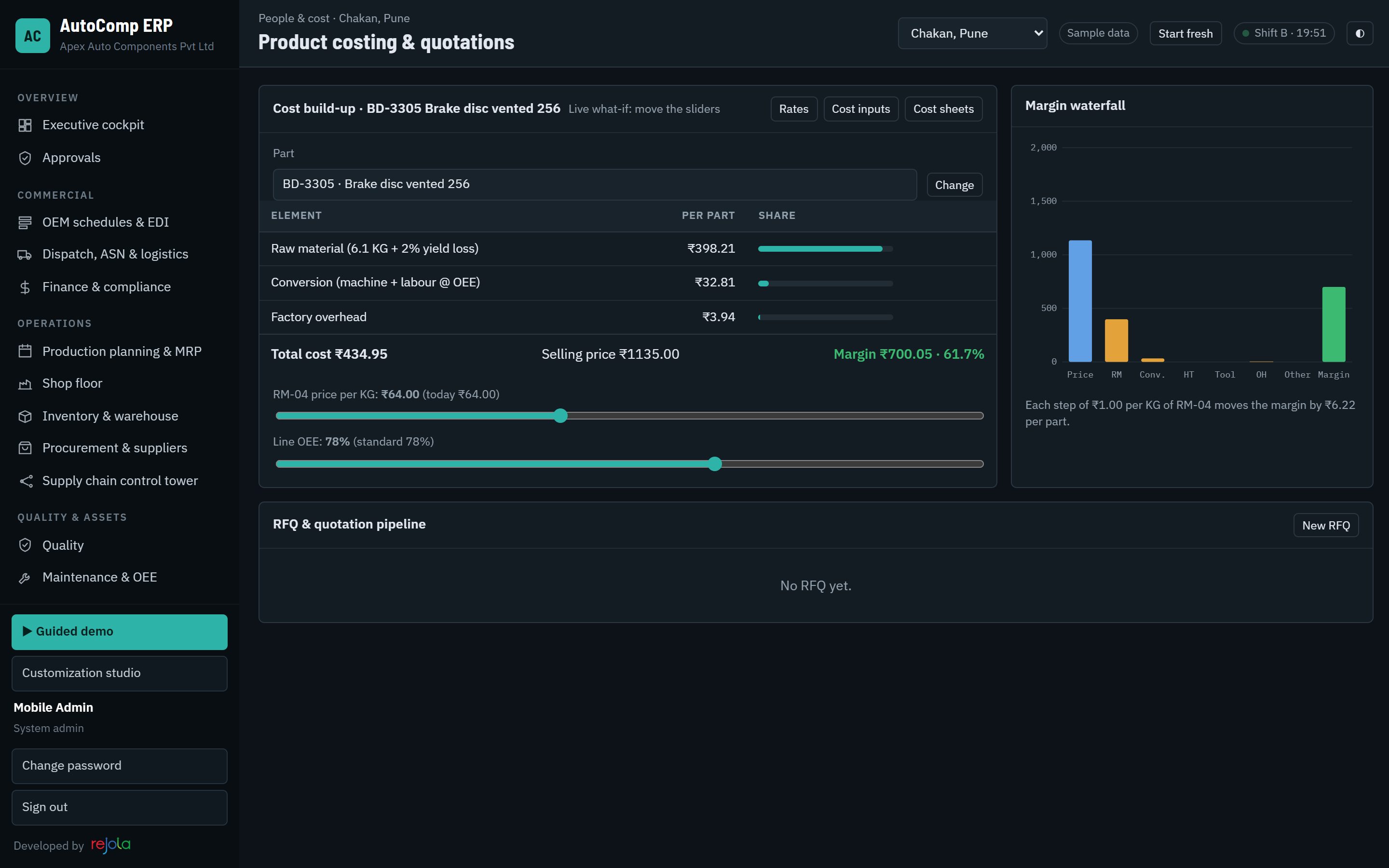
The real cost of each part, built from its bill of material and routing at your plant's rates, and a pipeline that takes every enquiry from RFQ to decision.

  • Cost build-up
  • Should-cost
  • RFQ
AutoComp ERP costing screen: cost build-up, margin waterfall and the RFQ pipeline
  • Cost build-up

    Material, machine and labour cost from the BOM and routing. Change rates or inputs and it updates.

  • What-if

    Sliders show the effect of a change without saving anything. Save a cost sheet version when you are sure.

  • Margin waterfall

    Shows where the price of a part goes, step by step.

  • RFQ pipeline

    Each enquiry moves from received, through should-cost and negotiation, to a decision.

People, skills & payroll

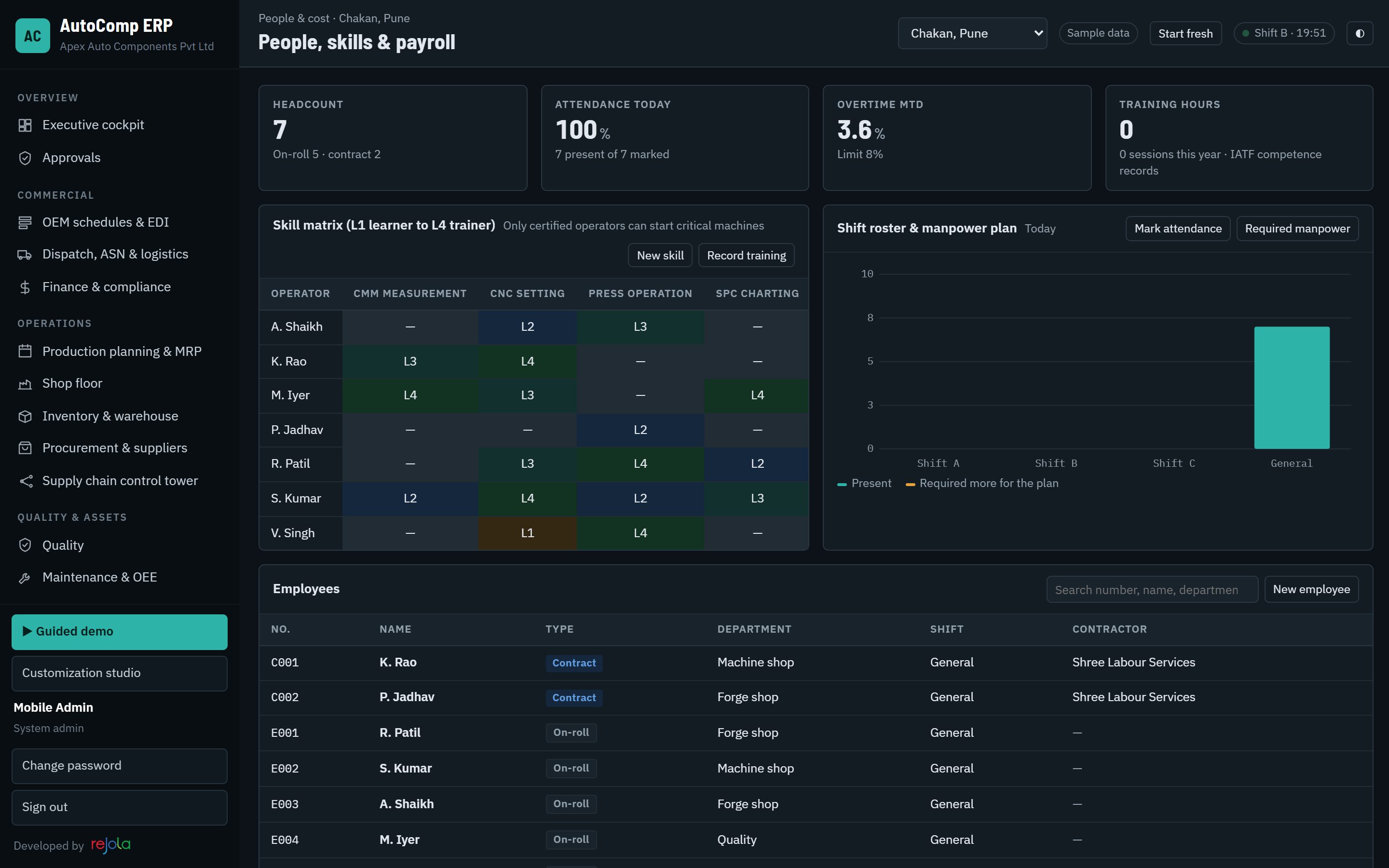
Employees and contractors, what each person can do, who turned up for which shift, and the month's payroll, approved by a second person.

  • Skill matrix
  • Attendance
  • Payroll
AutoComp ERP people screen: skill matrix, attendance and manpower per shift
  • Employees and contractors

    Everyone who works in the plant, in one list.

  • Skill matrix

    Each person's level on each skill, from learner (L1) to trainer (L4), with training records.

  • Attendance

    Mark attendance by hand or import the time-clock file.

  • Manpower per shift

    Shows what each shift is short of, before it starts.

  • Contract labour

    Compliance and cost of contract workers.

  • Payroll

    Salaries with statutory deductions, approved by a second person. An approved payroll can be reversed with a reason.

Advanced

Forecasts, live machines, and a full trace when it matters.

Demand forecasting

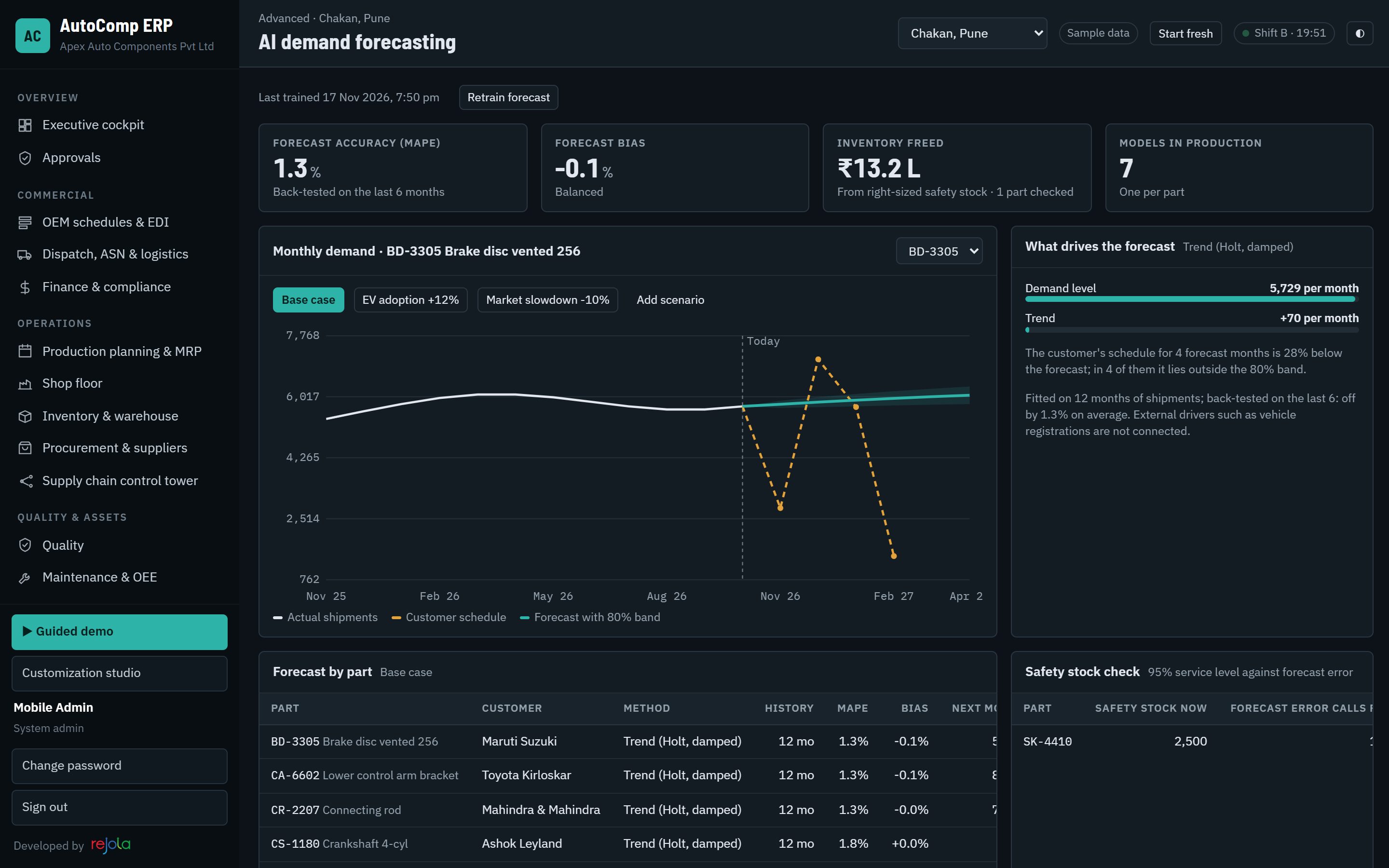
Learns each part's demand from its shipment history, month by month, and is retrained every month. A part without enough history is listed, not guessed.

  • AI forecast
  • Scenarios
  • Safety stock
AutoComp ERP forecasting screen: forecast by part with its range
  • Forecast by part

    Each part's expected demand, with the range it may fall in.

  • By delivery point

    The same forecast split by where the parts are delivered.

  • What drives it

    Shows which factors move the forecast, so you can trust or question it.

  • Safety stock check

    Whether your safety stock covers the forecast's uncertainty.

  • Scenarios

    Scale the forecast for an event, such as a model launch at +20%, and remove it later.

Digital twin

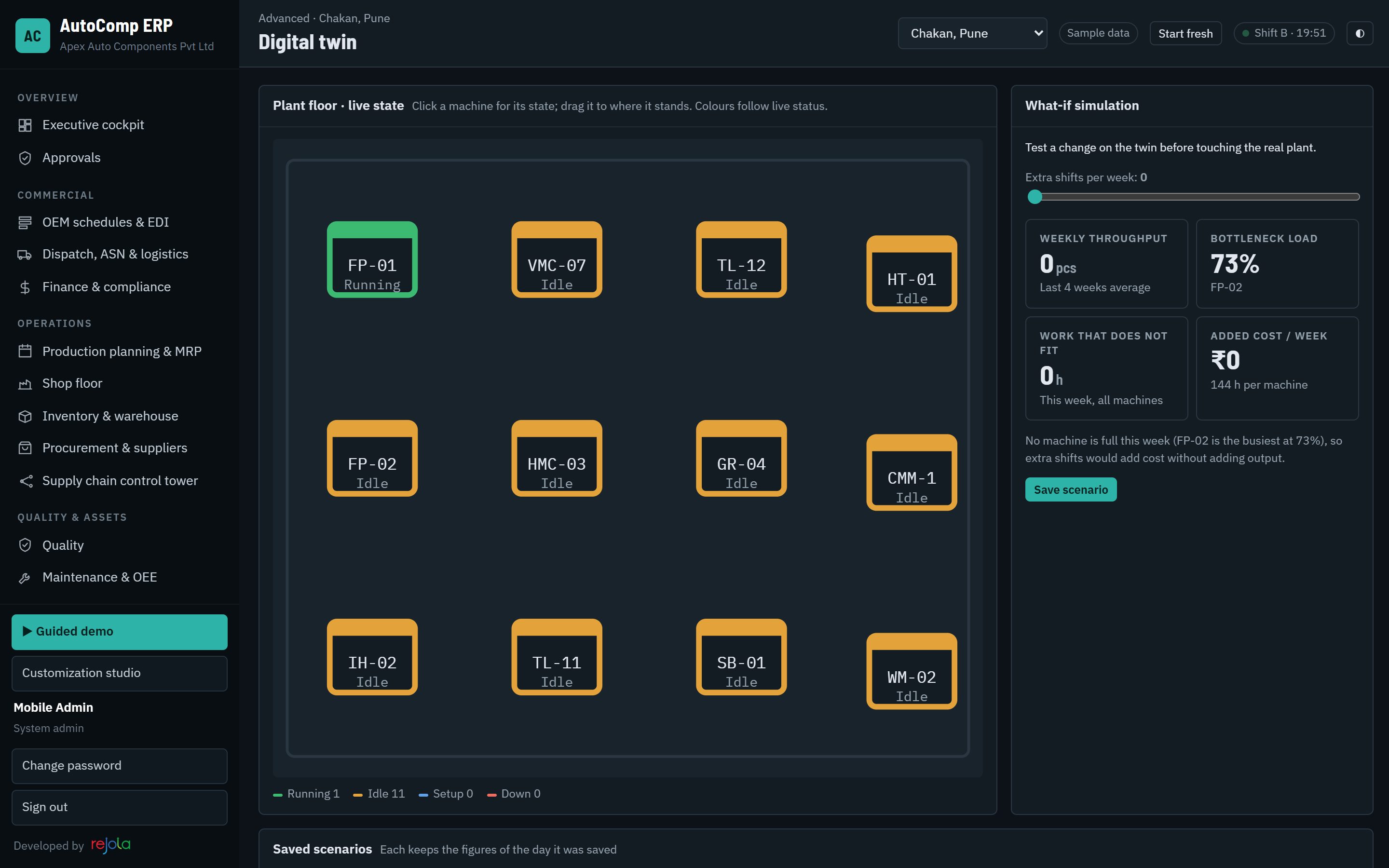
Your plant layout with every machine in its place, coloured by its live status, and a what-if for extra shifts before you change the real floor.

  • Plant layout
  • Live status
  • What-if
AutoComp ERP digital twin screen: plant floor with machines coloured by live status
  • Live plant floor

    Each machine on the layout, coloured by its status. Drag a machine to where it really stands.

  • What-if simulation

    See how output and load change with extra shifts, and save scenarios to compare.

Machine monitoring

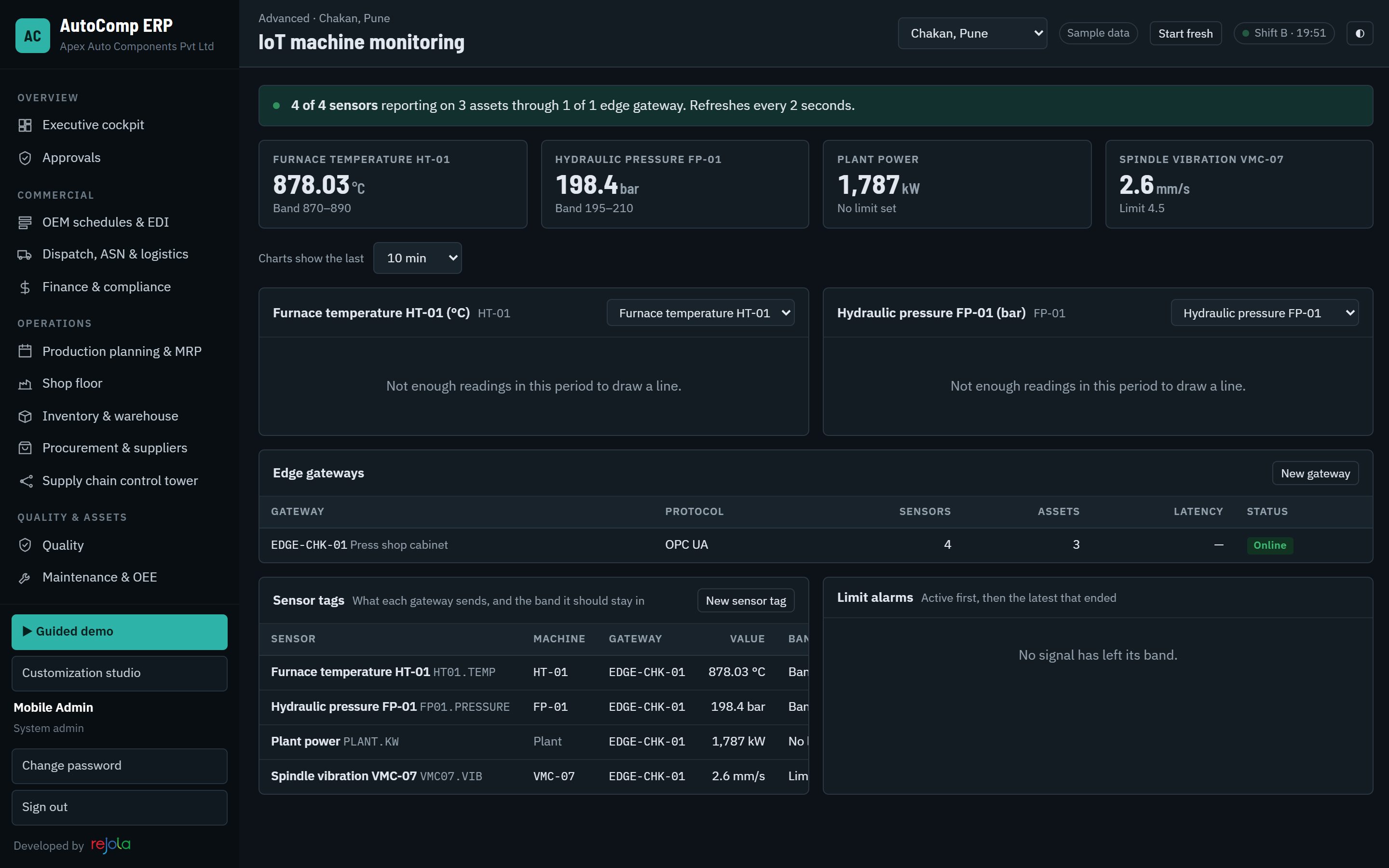
Live signals from your machines, each with its allowed band, and an alarm the moment one leaves it.

  • IoT
  • Edge gateways
  • Limit alarms
AutoComp ERP machine monitoring screen: live sensor readings with their limits
  • Gateways and sensors

    Each signal of a machine with its unit and the band it should stay in.

  • Live readings

    Readings appear within seconds of being sent.

  • Limit alarms

    A signal outside its band raises an alarm, which ends when the signal returns.

Predictive maintenance

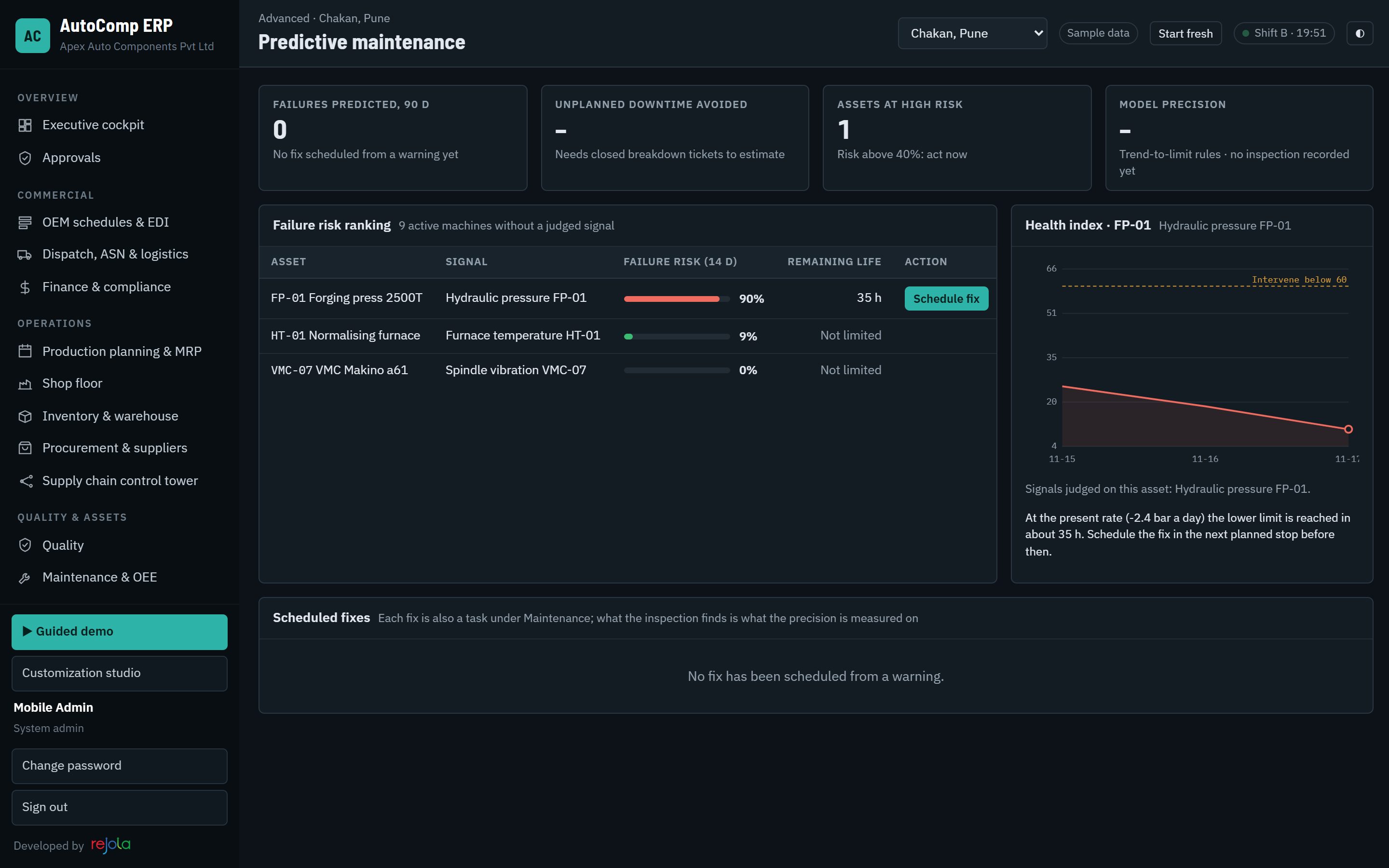
Ranks machines by how soon a drifting signal will reach its limit, so the fix is planned before the breakdown.

  • Failure risk
  • Health index
AutoComp ERP predictive maintenance screen: machines ranked by failure risk with their health index
  • Failure risk ranking

    Machines in order of how soon a rising or falling signal reaches its limit.

  • Health index

    A score for each machine, with the trend behind it.

  • Schedule a fix

    Plan the repair from the warning, then record what the inspection found.

  • Prediction precision

    Inspection outcomes show how often the warnings were right.

Traceability

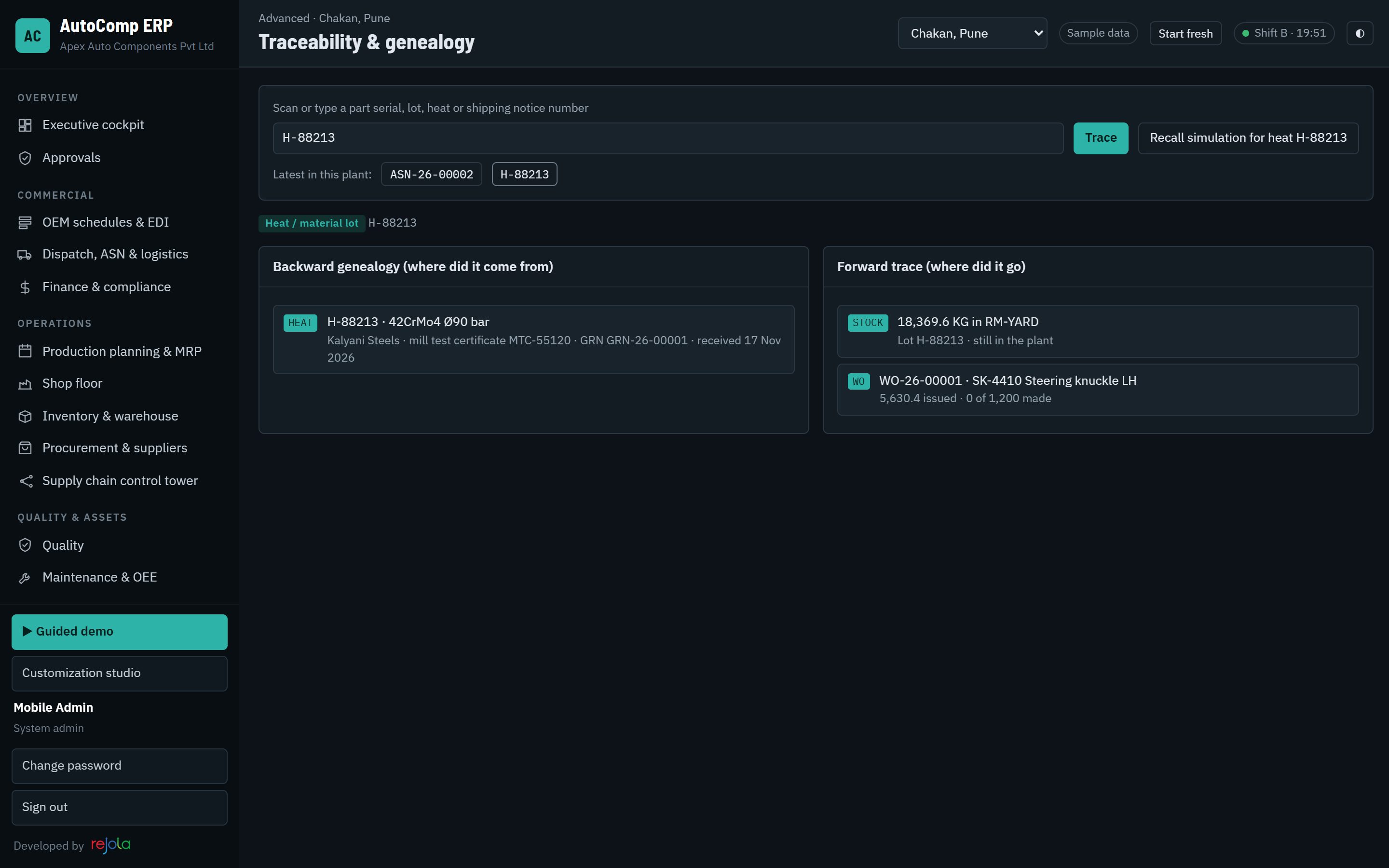
Type a heat, lot, work order or shipping notice number and follow it both ways: back to the mill certificate, and forward to every customer.

  • Genealogy
  • Recall simulation
  • Containment
AutoComp ERP traceability screen: a steel heat traced to its mill certificate and forward to a work order
  • Forward trace

    Where it went: through work orders and shipments to customers.

  • Backward genealogy

    Where it came from, down to the steel heat and its certificate.

  • Recall simulation

    The full exposure of a suspect heat or lot, in one step.

  • Containment

    The lots to block, so nothing more ships from it.

  • Customer notification

    A draft notice for each affected customer, ready to send.

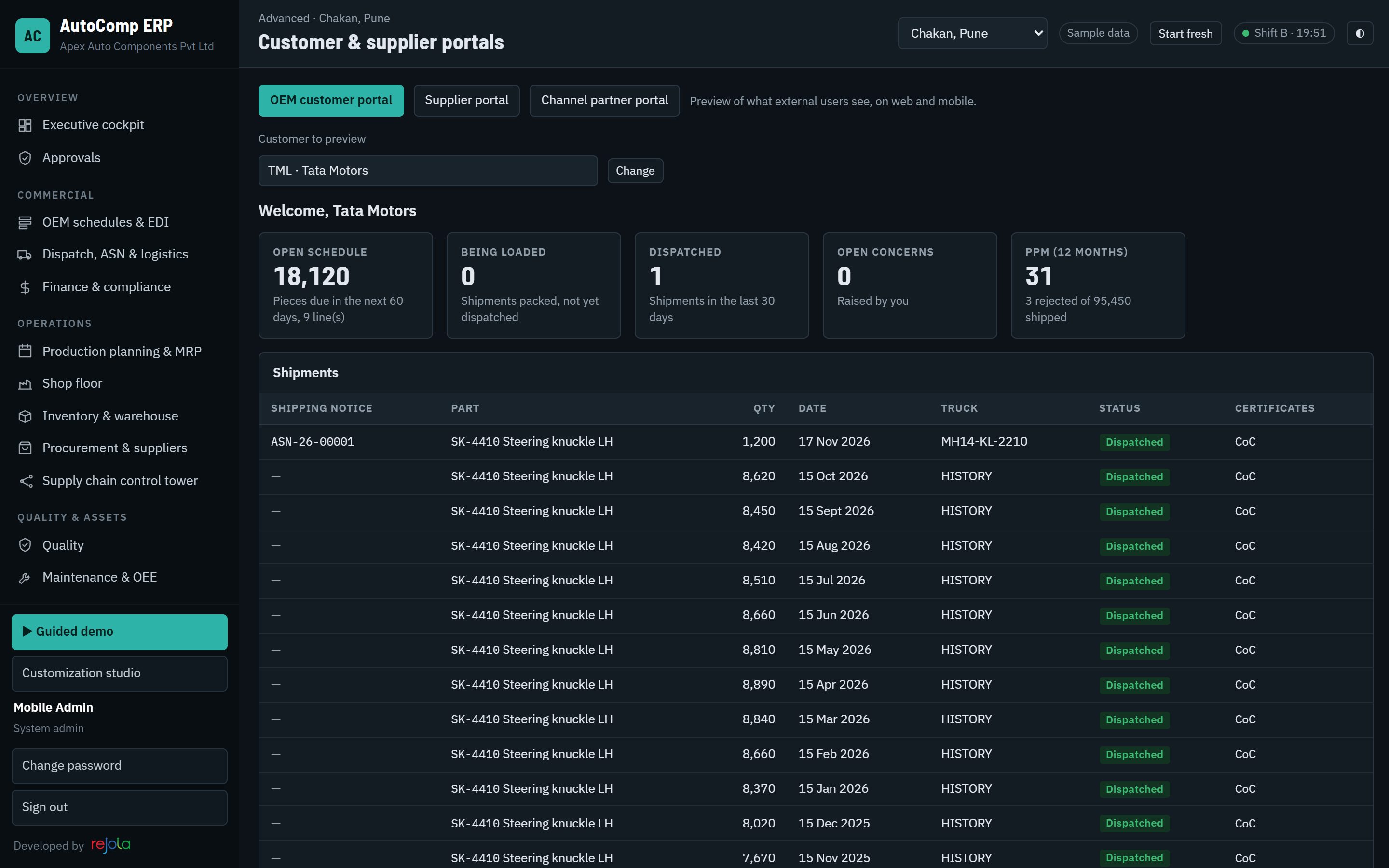
Customer & supplier portals

Customers and suppliers sign in to see only their own orders, shipments and documents, and answer you there instead of by email.

  • ECN
  • SCAR
  • Certificates
The AutoComp ERP customer portal: open schedule, shipments with their certificates, and PPM
  • Portal preview

    See exactly what any customer or supplier sees.

  • Customer concerns

    Concerns raised on the portal arrive in AutoComp ERP for you to answer.

  • Certificates

    Customers download the certificate of conformity and mill certificates of every shipment.

  • Engineering changes

    Send a change notice to a customer for approval.

  • Supplier corrective actions

    Send a corrective action request to a supplier and follow the answer.

  • Channel partners

    Demo requests, shared files and the price list partners quote from.

Included with every installation.

Whichever modules you switch on, these come with them.

  • Executive cockpit

    Revenue against plan, output, OEE and live alerts for every plant.

  • Approvals

    One inbox for orders, PPAPs, changes and counts. Nobody approves their own request.

  • Roles and plants

    Fifteen ready-made roles, your own roles, and access per plant.

  • Audit log

    Who changed what and when, with the before and after.

  • Spreadsheet import

    Customers, parts, BOMs and machines from a template. A file with mistakes saves nothing.

  • Your brand

    Your product name, colour and your words for work order and schedule.

  • Region packs

    Tax, currency and financial year for India, Europe and North America.

  • Daily backups

    Checked after writing, on your own server or cloud.

See your plant in AutoComp ERP.

A short walk-through with your parts, your machines and your schedules.

Request a demo

See your plant in AutoComp ERP.

Leave your number and we call you to set a time.